
How do I remove or replace a photo’s background on iPhone?
iPhone can already lift a subject for free: in Photos, touch and hold it. OutGlam adds a free background remover that puts the subject on transparent, white, any color, a blur or your own photo, and AI scenes that place you somewhere new, made to match the light, for 1 credit.
Updated October 5, 2026
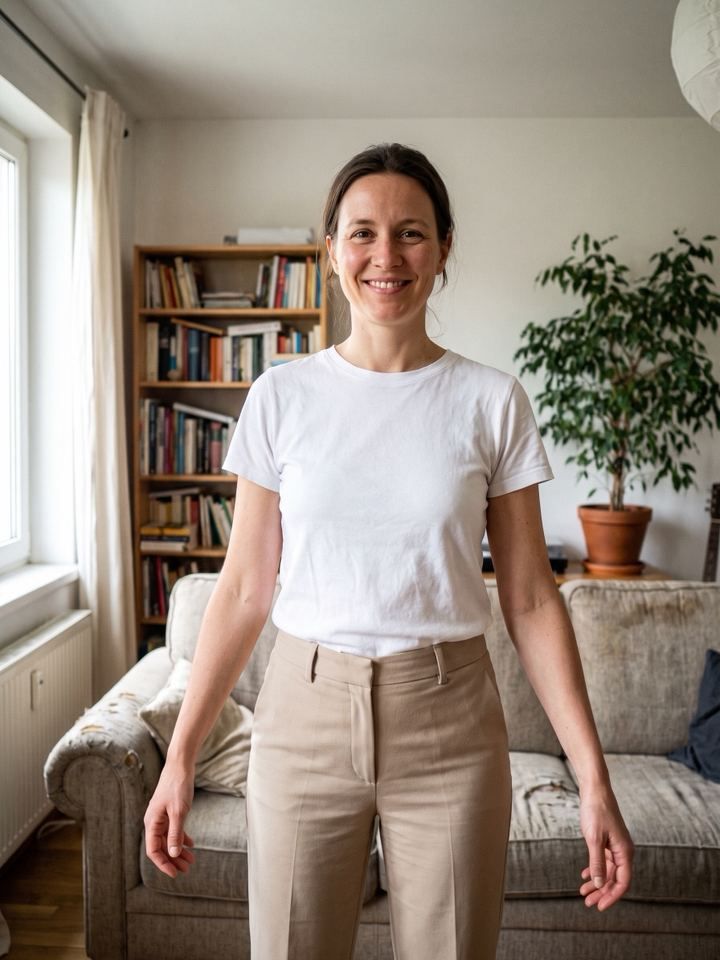
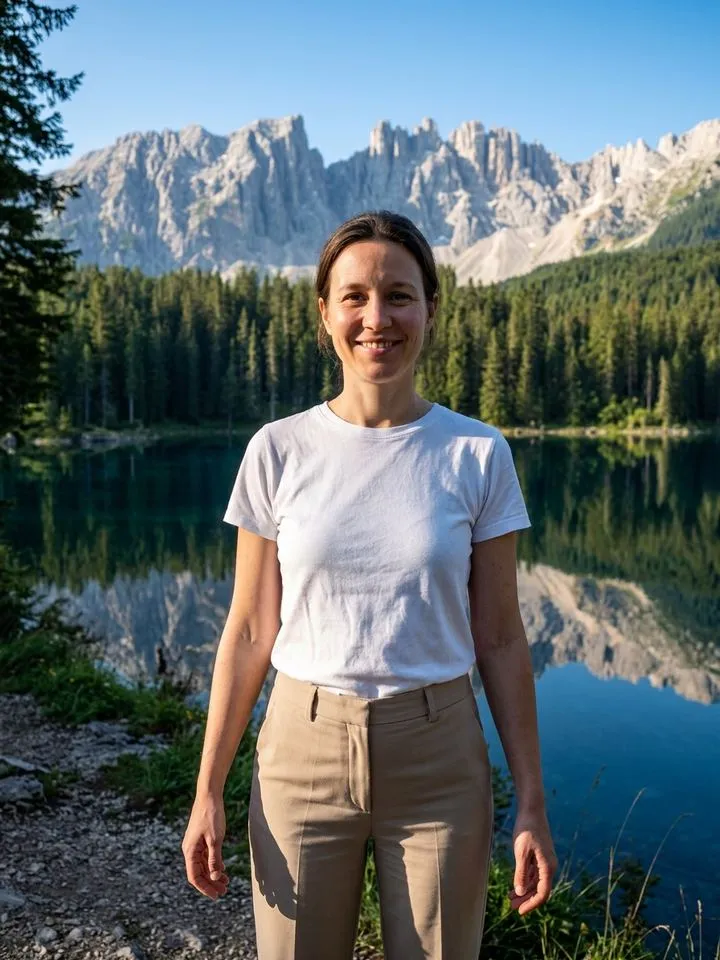
New background in 4 steps
Pick a photo
A person, a pet or a product. Limited photo access works.
Remove the background, free
Tap Background (Remove background on the Home screen) and choose None (transparent), White, Black, Color, Blur or Photo. Refine the edges with a brush.
Or go somewhere new
Tap Templates › Scenes: Beach at sunset, City at night, Cozy cafe or Mountain lake. Or type the place. 1 credit.
Compare and save
Transparent backgrounds save as PNG. If an AI scene misses, redo it free, up to 3 times in any 7 days.
Seven backgrounds from one photo
The first three are the free background remover; the last four are AI scenes from the templates in the app.
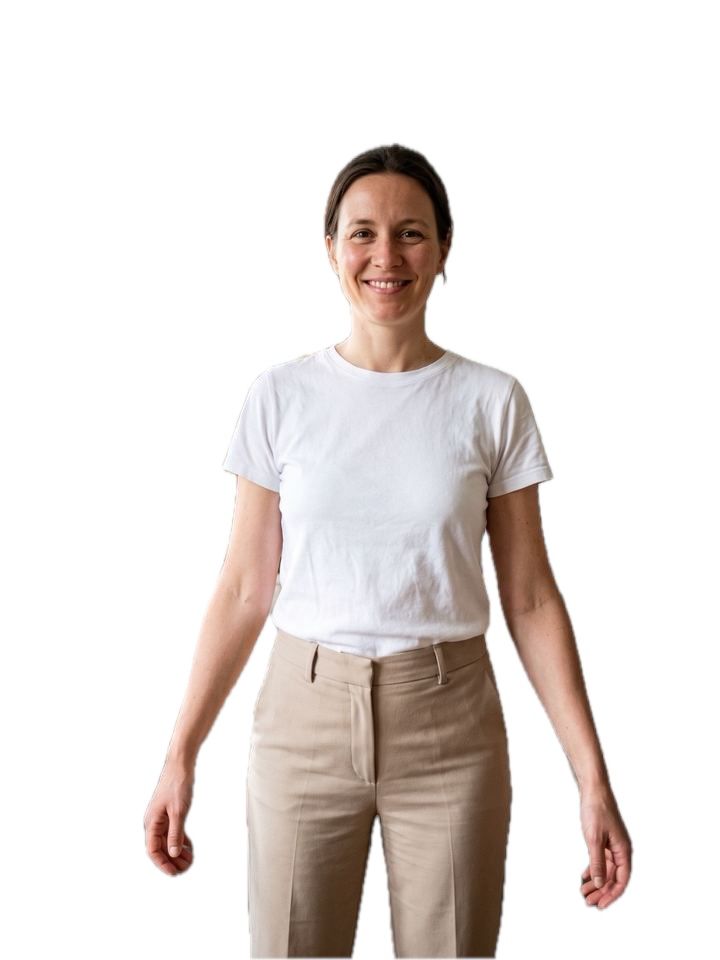
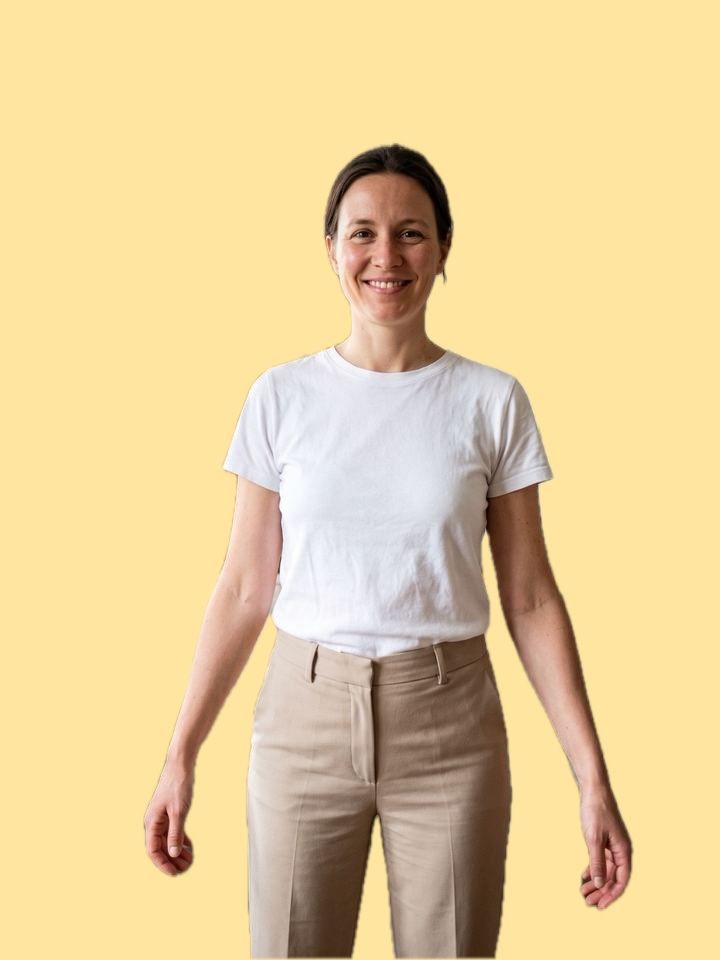
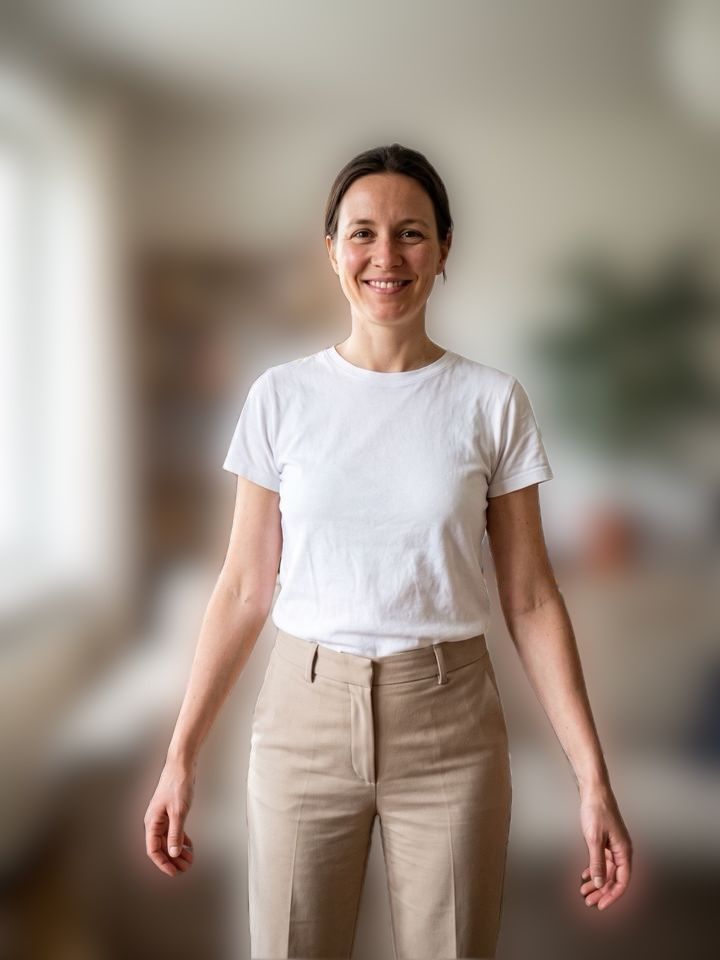
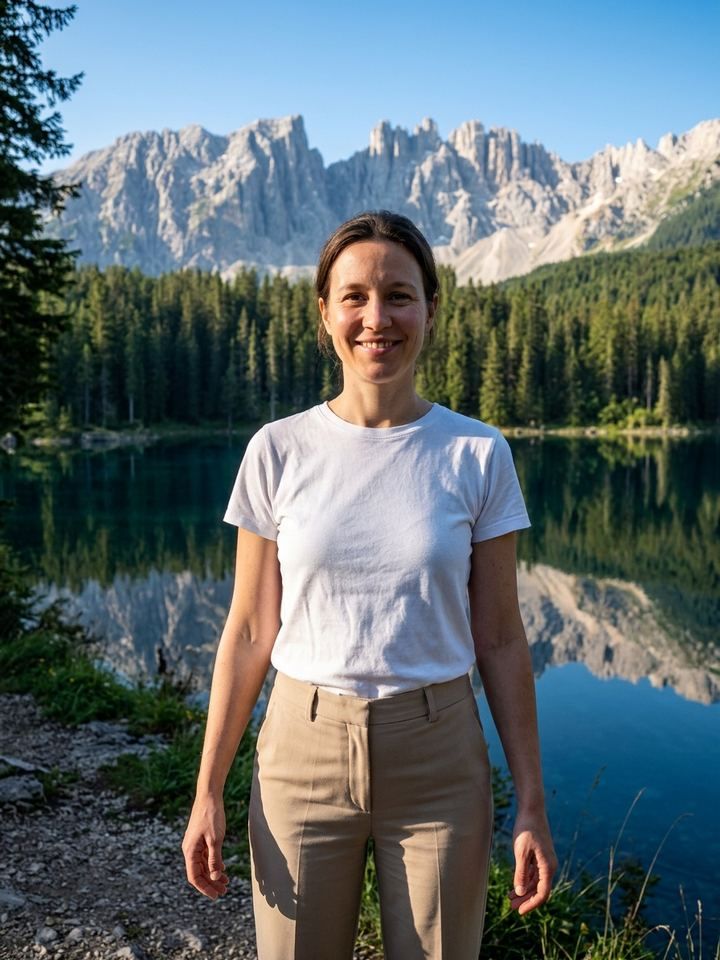

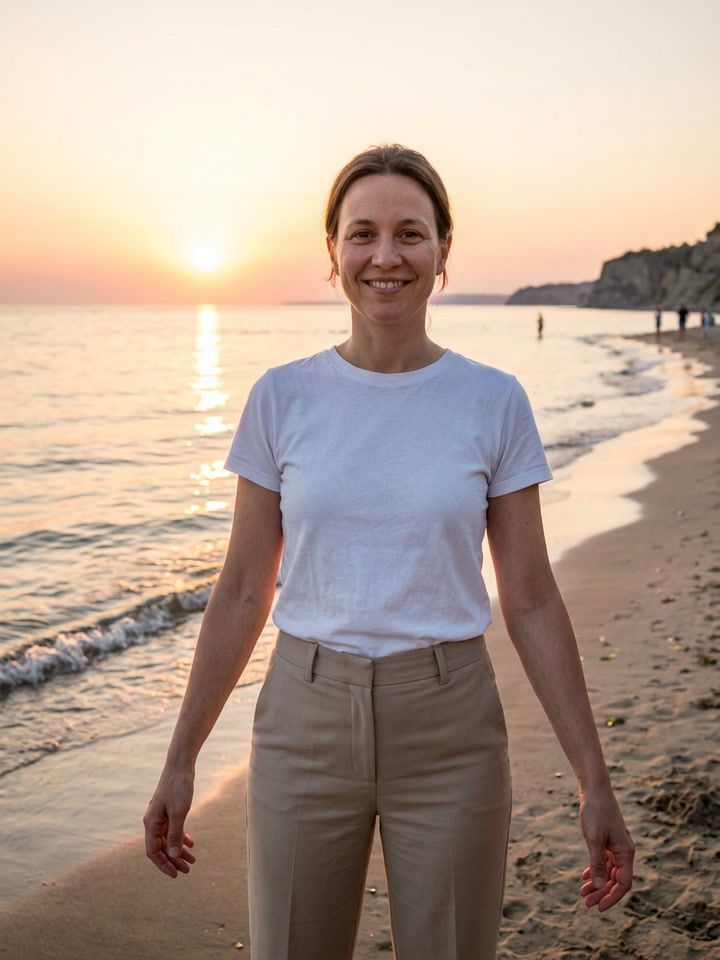

Photos, the remover or an AI scene
| Way | Lift in Photos (iOS) | Background (free tool) | AI scene |
|---|---|---|---|
| What you get | The subject on its own, to copy or share | The subject on transparent, white, black, a color, a blur or your photo | You in a new place, light made to match |
| Edges | Automatic | Automatic, with a brush to refine | Redrawn with the scene |
| Runs | On your iPhone | On your iPhone | On our server and AI providers |
| Cost | Free | Free | 1 credit |
What it costs and what it can’t do
What it costs
- The background remover is free, with no limit and no connection needed.
- 1 credit per AI scene. The price shows before you tap.
- New users get a free starter credit.
- Failed and refused edits are never charged, and neither is an edit you cancel before it’s delivered.
What it can’t do
- The remover doesn’t relight anything. A subject cut out of dim light stays dim; AI scenes match the light.
- Fine hair and see-through edges are hard. Refine them with the brush.
- AI scenes redraw the photo. Check faces and details; touch and hold to compare with the version before.
- AI scenes need a connection. The photo is uploaded only after you allow it.
Background questions
Is removing the background free?
Yes. Background (Remove background on the Home screen) runs on your iPhone, uses no credits and has no daily limit.
What can I put behind the subject?
Nothing (a transparent background), white, black, any color, a blur of the original or one of your own photos. A brush refines the edges.
How is this different from lifting a subject in Photos?
In Photos you can copy or share the subject on its own. OutGlam puts it on a new background in the same photo, with edges you can refine, and AI scenes place you somewhere new.
Will a new scene match the light?
The scene templates are made to match the light and shadows on you to the new place and to keep your face, pose and outfit the same.


Take it somewhere new.
The background remover is free. AI scenes cost 1 credit.
Download on theApp Store