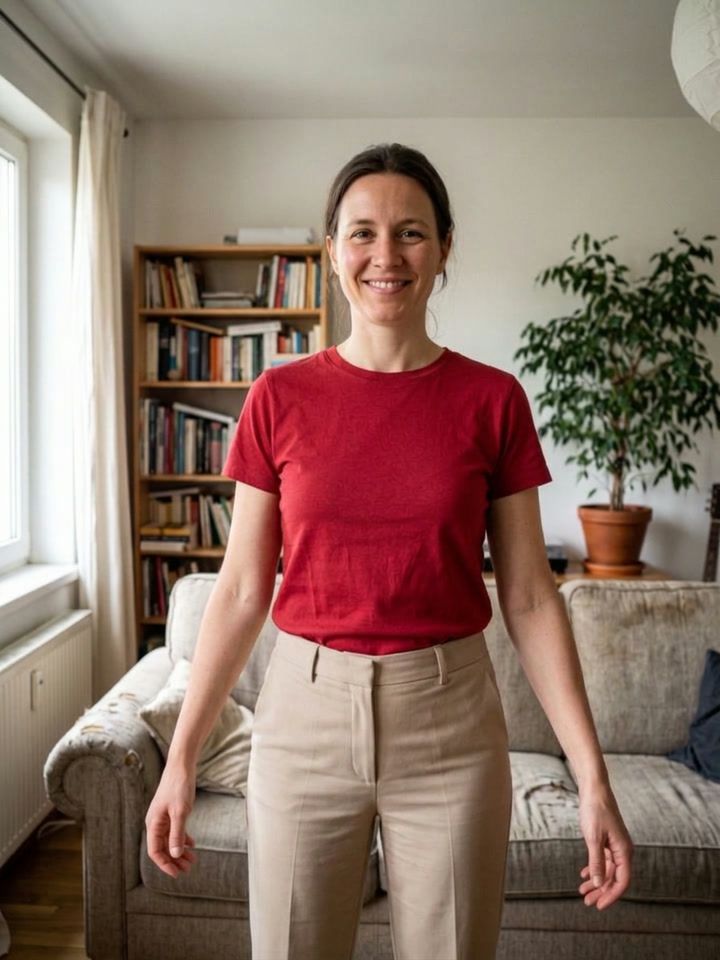
How do I change my outfit in a photo on iPhone?
Use OutGlam’s outfit changer. Open a photo of yourself, tap Templates › Outfits or type the look you want, like “put me in a navy suit,” and the app redresses you, made to keep your face, skin tone and pose. Each try-on is one AI edit and costs 1 credit, shown before you tap.
Updated October 5, 2026

Change your outfit in 4 steps
Pick a photo
Open OutGlam and choose a photo where you are standing and your clothes are visible. Limited photo access works.
Choose a look
Tap Templates › Outfits for a one-tap look, or type your own, like “a camel coat with a scarf.”
Add the item, if you like
Attach up to 3 reference photos, such as a screenshot of the jacket you are looking at, and ask to put it on you.
Compare and keep
Touch and hold to compare with the version before. If the result misses, redo it free, up to 3 times in any 7 days.
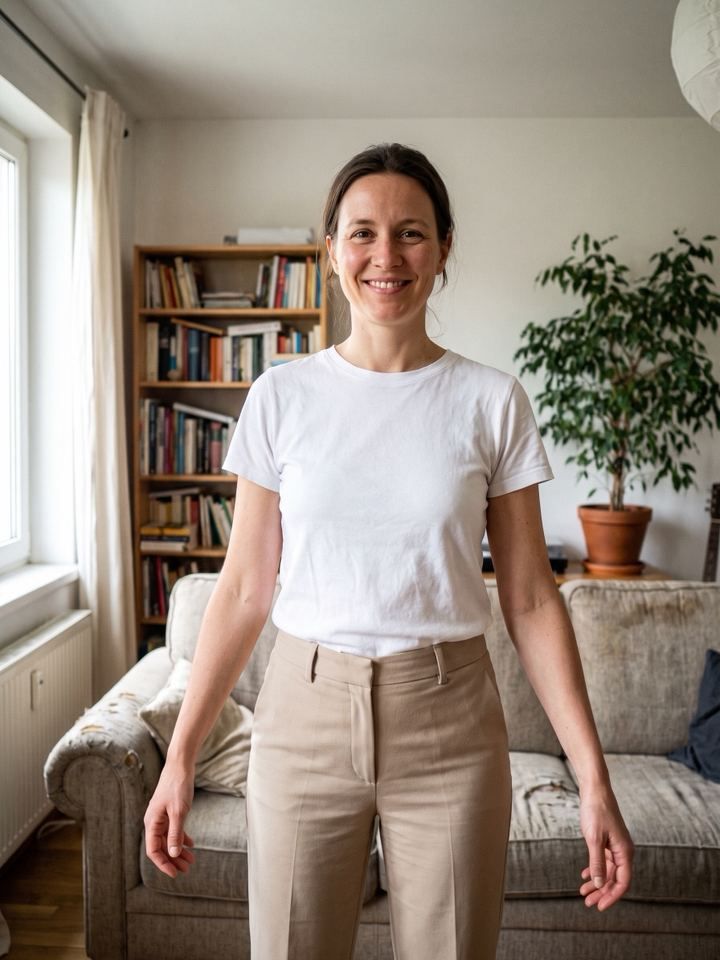
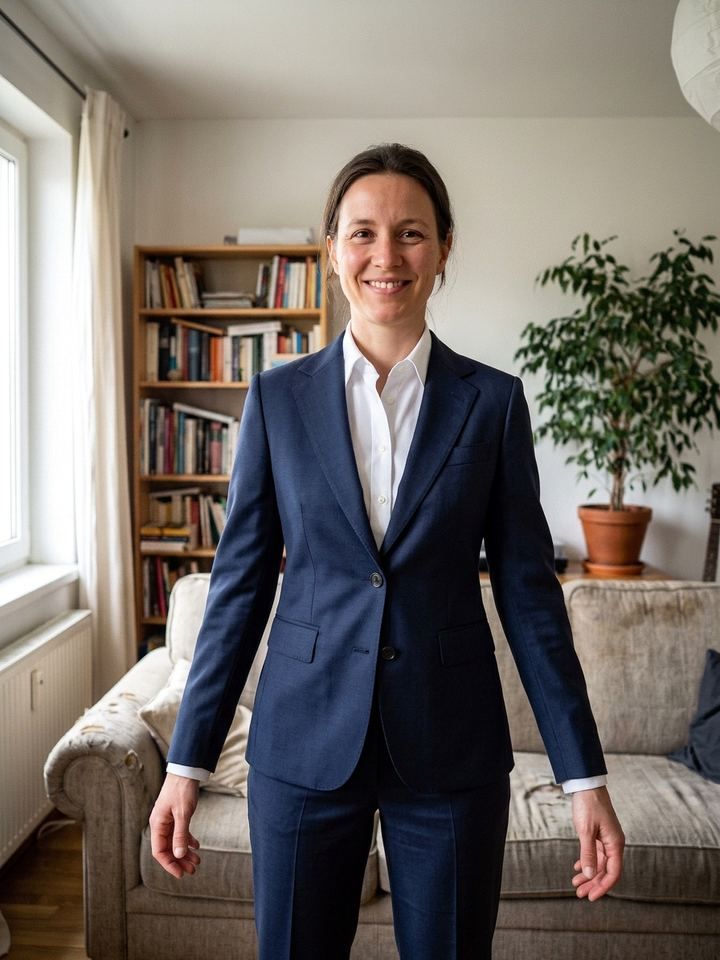
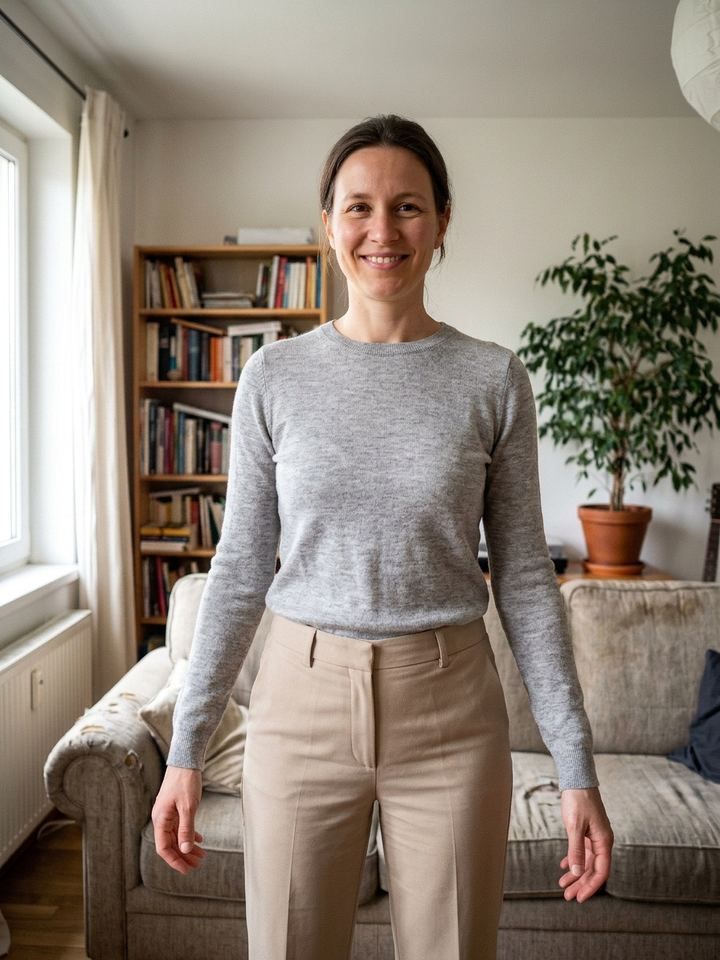
Seven outfits from one photo
Every look below was made from the original on the left with the outfit templates in the app. Same face, same room, new clothes.
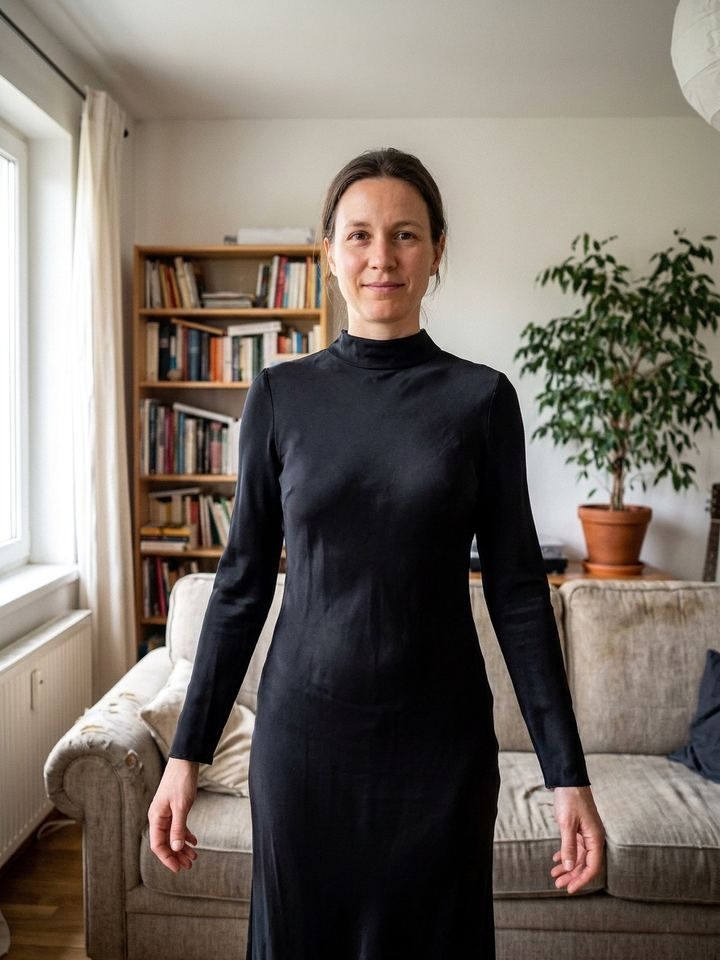
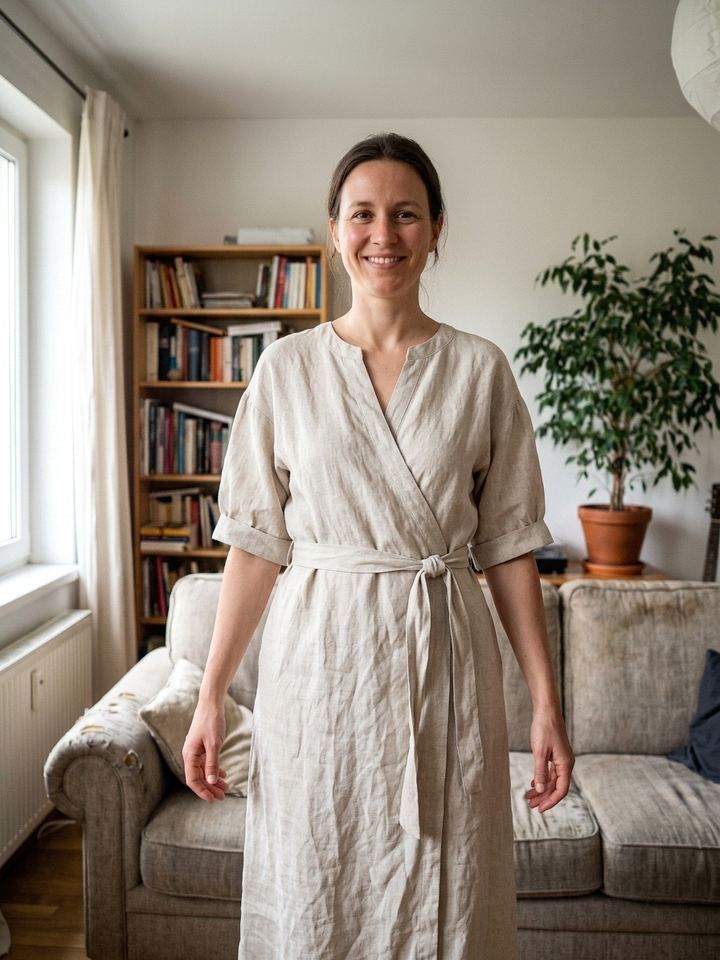
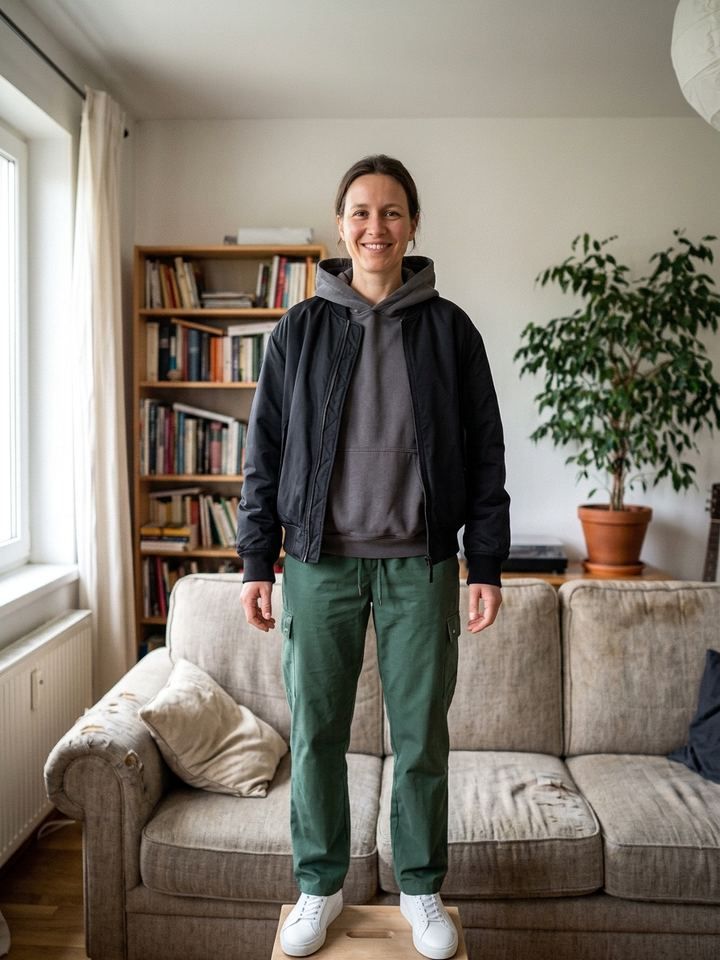
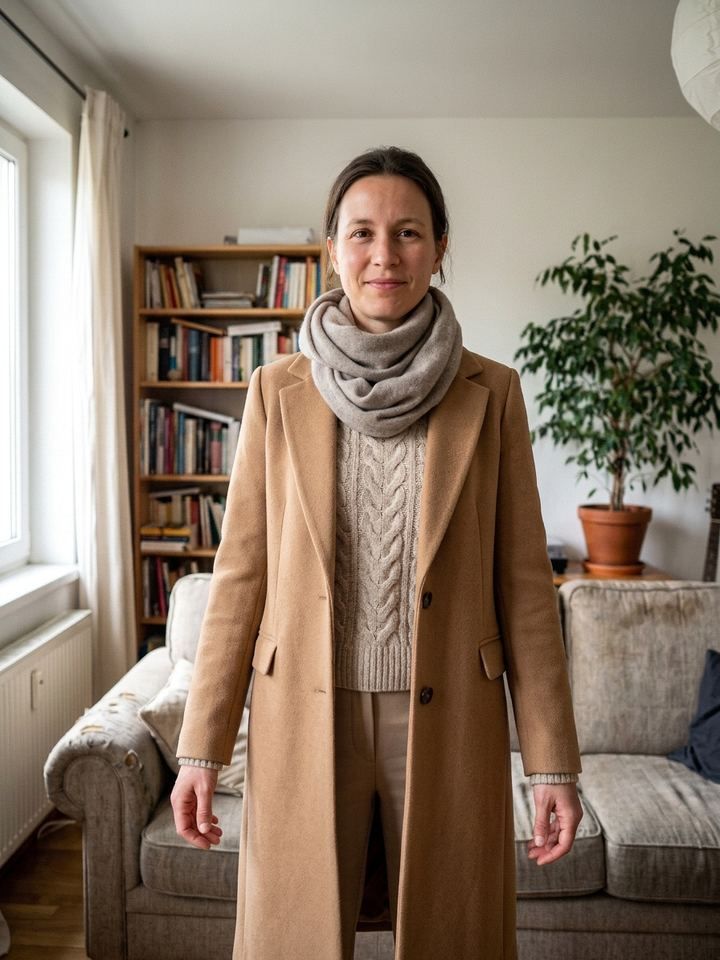
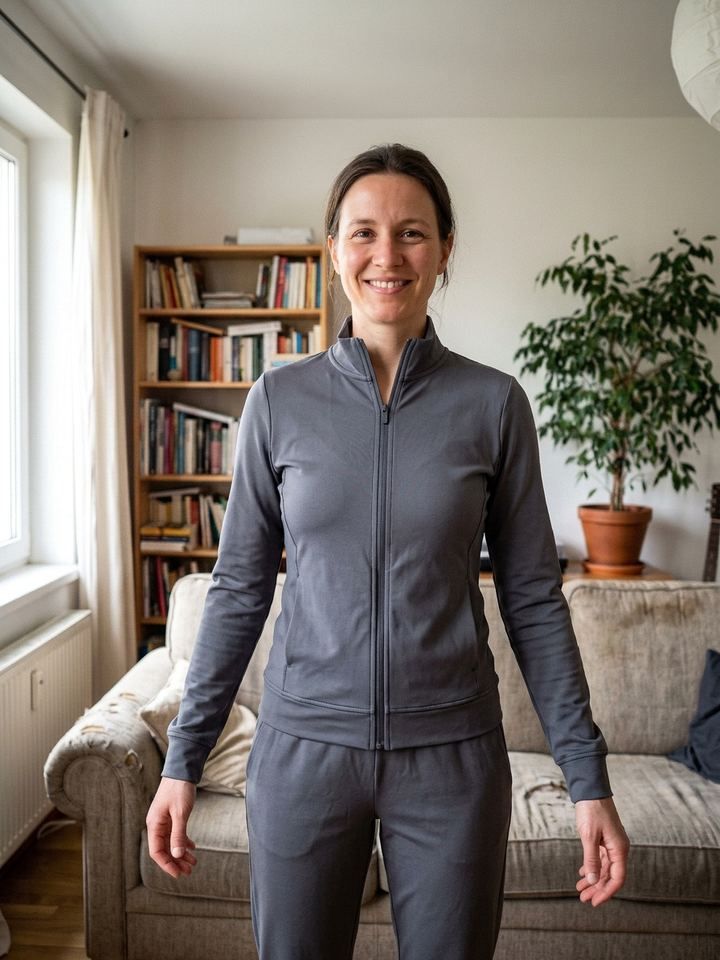
Template, words or a photo of the item
| Way to try on | Template | Type it | Reference photo |
|---|---|---|---|
| Best for | A quick new look | Any outfit you can describe | A specific item you are thinking of buying |
| How | One tap in Templates › Outfits | Write it in your own words | Attach up to 3 photos, then ask to put it on you |
| Cost | 1 credit | 1 credit | 1 credit |
What it costs and what it can’t do
What it costs
- 1 credit per try-on. The price shows before you tap.
- New users get a free starter credit. The first try-on is on us.
- Failed and refused edits are never charged, and neither is an edit you cancel before it’s delivered.
- Redo free when a result misses, up to 3 times in any 7 days.
What it can’t do
- It shows a likeness, not a fit. Size, drape and exact color can differ from the real item.
- Hidden clothes are harder. Bags, crossed arms or other people in front of the outfit can throw it off.
- Revealing or undressing requests are refused, and never charged.
- It needs a connection. The photo is uploaded only after you allow it.
Outfit changer questions
Is the outfit changer free?
Each try-on costs 1 credit. New users get a free starter credit, so the first one is free. Crop, Adjust, Filters, Text and Background are free.
Will it keep my face?
It is made to keep your face, hair, skin tone and pose and change only the clothes. If a result changes more than you asked, redo it free, up to 3 times in any 7 days.
Can I see a specific item on me?
Yes. Add up to 3 reference photos, such as a screenshot of the product page, and ask OutGlam to put it on you.
Can I try a new hairstyle or hair color too?
Yes. The Looks templates include a short cut, long waves and honey blonde hair, or type it, like “make my hair red.”
Which photos work best?
A well-lit photo where you face the camera and the clothes you want to change are visible. Full-length photos work best for whole outfits.